
Why Does My Game Keep Crashing to Desktop?
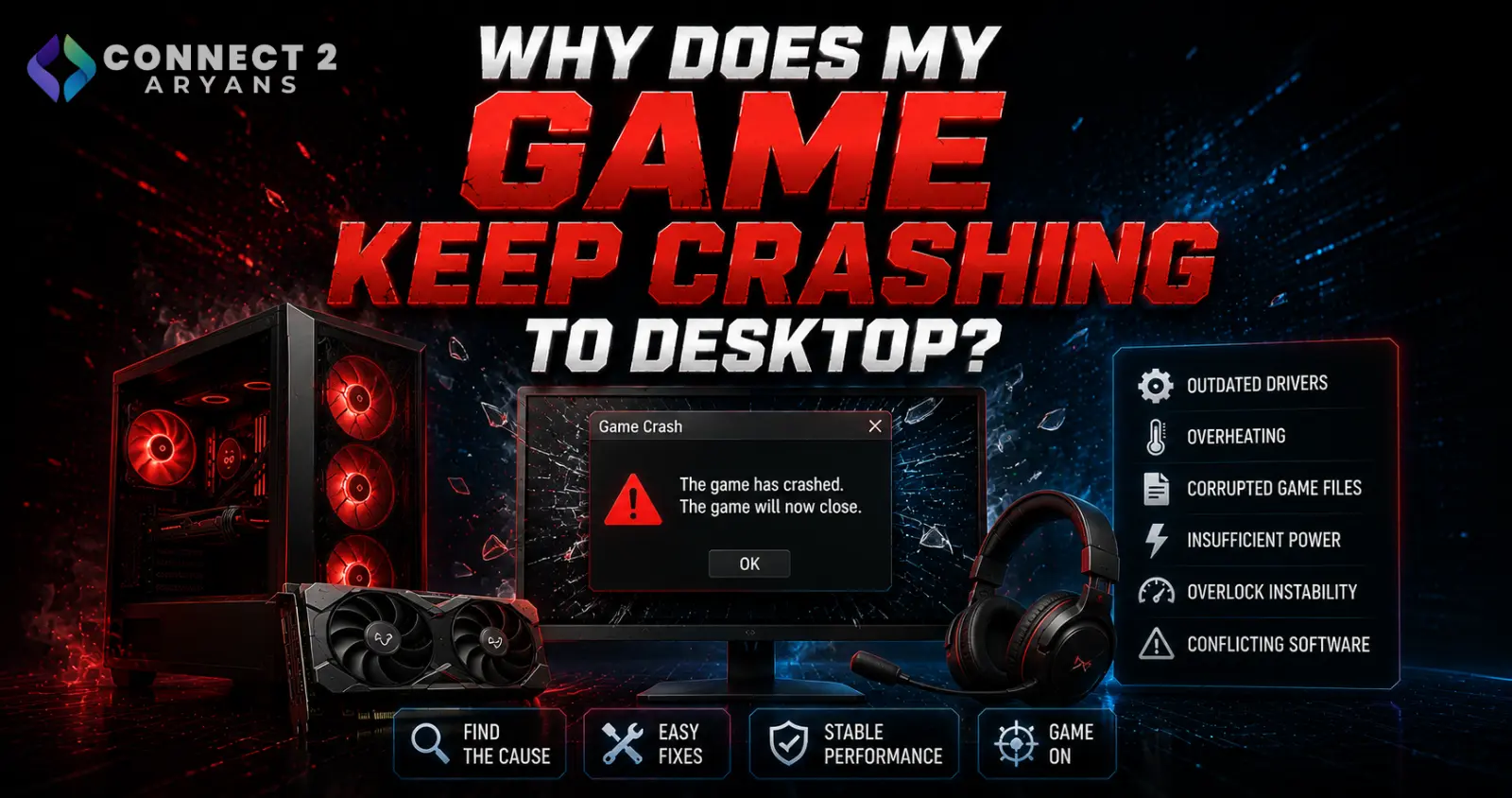
A game crashing straight to desktop (CTD), with no error message or with a vague one, is frustrating precisely because it doesn't tell you much on its own. But the cause is almost always one of a handful of common culprits — here's how to systematically find it.
Step 1: Check If It Happens in Multiple Games or Just One
- Only one specific game? Points toward a game-specific bug, corrupted install, or a compatibility issue with that title specifically
- Multiple different games? Points more toward a system-wide cause — drivers, overheating, RAM, or background software
Step 2: Verify/Repair Game Files
- Most game platforms (Steam, Epic, etc.) offer a "verify integrity of game files" option — this checks for and repairs corrupted installation files, a common and easily fixed cause of random crashes
- Run this first if it's isolated to a single game, since it resolves a meaningful share of single-game crash issues
Step 3: Update GPU Drivers
- Outdated or corrupted GPU drivers are one of the most common causes of crashes across multiple games, especially after a recent game update or new release that hasn't been optimized for your current driver version
- Perform a clean driver reinstall from NVIDIA or AMD directly, using the manufacturer's clean-install option if available, rather than a standard update over the existing installation
Step 4: Check for Overheating
- If crashes happen specifically after playing for a while (rather than immediately), overheating and thermal protection shutting down the game (or the whole system) is a likely cause
- Monitor CPU and GPU temperatures during a session leading up to a crash — consistently climbing to high levels right before crashing is a clear signal
- Clean dust, check thermal paste, and consider whether your Air Cooler or liquid cooling setup is genuinely adequate — browse our CPU Coolers range if an upgrade is needed
Step 5: Test for Faulty or Unstable RAM
- RAM issues can cause crashes specifically under the memory-intensive load that gaming creates, even if the system seems stable during lighter everyday use
- Run a memory diagnostic tool to check for errors, and if you've enabled XMP/EXPO, try reverting to default speed temporarily to see if crashes stop
Step 6: Check Background Software Conflicts
- Overlay software (Discord overlay, recording software, RGB lighting apps) occasionally conflicts with specific games, causing crashes
- Try disabling overlays and background software one at a time to isolate whether one of them is the actual trigger
Step 7: Check for an Unstable Overclock
- If you've overclocked your CPU or GPU, gaming's sustained heavy load is often where instability first shows up, even if the system seemed fine in lighter use or basic benchmarks
- Revert to stock clock speeds temporarily to test whether crashes stop
Step 8: Check for Storage-Related Causes
- If the game (or its save files) are on a failing or nearly-full drive, this can contribute to crashes, particularly during loading or auto-save moments
- Confirm you have adequate free space, and check drive health if you suspect a failing storage device
Step 9: Check Windows Event Viewer for Crash Details
- Event Viewer (under Windows Logs → Application) often logs the specific module or process that caused the crash, which can point toward a specific driver, DLL, or software conflict rather than a vague "game closed unexpectedly"
Quick Diagnostic Summary
| Symptom | Likely Cause |
|---|---|
| Only one specific game crashes | Corrupted game files — verify/repair first |
| Multiple games crash | Drivers, overheating, or RAM |
| Crashes after playing for a while | Overheating/thermal throttling |
| Crashes started after enabling XMP/EXPO or overclocking | Unstable overclock |
| Crashes correlate with overlay software running | Background software conflict |
Common Mistakes to Avoid
- Reinstalling the entire game before trying the much faster file verification/repair option first
- Assuming it's always a game bug without checking drivers, temperatures, and RAM first
- Ignoring Windows Event Viewer, which often has useful crash detail
- Not testing whether an overclock or XMP/EXPO setting is the actual trigger
Final Thoughts
Game crashes to desktop almost always trace back to drivers, overheating, RAM instability, or corrupted game files — working through these in order, starting with the fastest checks (file verification, driver update), resolves the large majority of cases without needing to touch hardware.
Browse our full range of CPU Coolers, Memory RAM, and Graphics Card on Connect2Aryans if a hardware-related cause turns out to be the culprit, with warranty support included.

