
Why Won't My PC Detect a New SSD or HDD?
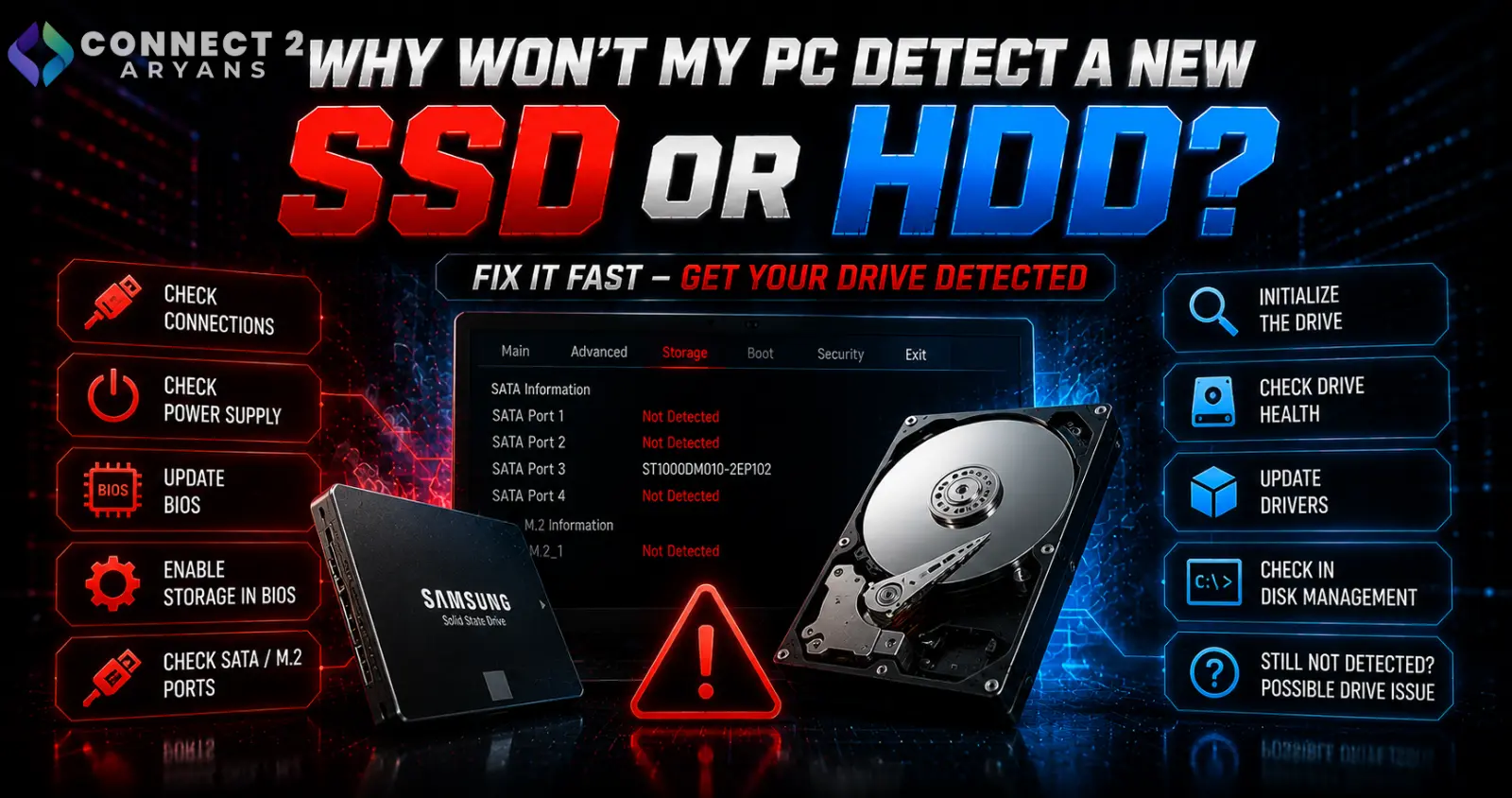
A newly installed drive not showing up is one of the most common "new component" frustrations — but it's rarely a dead drive straight out of the box. It's almost always a connection, BIOS setting, or a Windows initialization step that hasn't been completed yet. Here's how to fix it.
Step 1: Check If It's Detected in BIOS First
- Restart your PC and enter BIOS, checking the storage/drive detection page for your new drive
- Detected in BIOS but not Windows? The drive is working; the issue is on the Windows/software side (see Step 4 onward)
- Not detected in BIOS at all? This points to a physical connection issue or a genuinely faulty drive
Step 2: Check Physical Connections (SATA Drives)
- Confirm both the SATA data cable and SATA power cable are firmly connected at both the drive and motherboard/PSU ends
- Try a different SATA cable and a different SATA port on the motherboard to rule out a faulty cable or port
- Confirm the drive is receiving power — check that the PSU cable connected to it is a genuine SATA power connector, fully seated
Step 3: Check M.2/NVMe Seating
- Confirm the M.2 drive is fully seated in its slot at the correct angle before screwing it down
- Check that the retention screw is properly securing the drive — a loosely seated M.2 drive can appear undetected even if physically present
- Confirm you've installed it in a slot that's actually enabled and not sharing bandwidth/lanes with another component in a way that disables it (check your motherboard manual for M.2 slot sharing details, since some slots deactivate when certain other slots are populated)
Step 4: Detected in BIOS But Not File Explorer (Windows)
If BIOS sees the drive but Windows doesn't show it in File Explorer, the drive likely needs to be initialized:
- Open Disk Management (search for it in the Start menu)
- Look for your new drive listed as "Unallocated" or prompting for initialization
- Right-click and select "Initialize Disk" if prompted, choosing the appropriate partition style (GPT is standard for most current systems)
- Once initialized, right-click the unallocated space and create a new simple volume, formatting it so it appears in File Explorer
Step 5: Check for a BIOS Setting Disabling the Drive/Slot
- Some motherboards allow you to individually enable/disable SATA ports or M.2 slots in BIOS — confirm nothing has been inadvertently disabled, especially after a BIOS reset or update
- Check your motherboard manual for any mode settings (like RAID vs AHCI) that might affect drive detection
Step 6: Test the Drive in a Different System (If Possible)
- If you have access to another PC, testing the drive there can help isolate whether the issue is the drive itself or something specific to your current system's motherboard, cables, or settings
Step 7: Check for Drive Compatibility Issues
- Confirm the drive's interface actually matches your motherboard's slot — an NVMe-only M.2 drive won't work in a SATA-only M.2 slot, and vice versa
- Double-check this compatibility before assuming a hardware fault, since this specific mismatch is a common cause of "detected in BIOS as unknown" or complete non-detection
Quick Diagnostic Summary
| Symptom | Likely Cause |
|---|---|
| Not detected in BIOS at all | Cable, power, or seating issue |
| Detected in BIOS, not in File Explorer | Needs initialization in Disk Management |
| M.2 drive not detected | Check seating, slot compatibility, and lane-sharing settings |
| Worked before, stopped suddenly | Check cable/connection first, then consider drive failure |
Common Mistakes to Avoid
- Assuming a new drive is dead before checking BIOS detection first
- Forgetting that new drives need to be initialized and formatted in Disk Management before appearing in File Explorer
- Not checking M.2 slot compatibility (NVMe vs SATA) before installation
- Overlooking motherboard-specific M.2 slot lane-sharing restrictions that can disable a slot under certain configurations
Final Thoughts
A new drive not appearing is almost always a connection, initialization, or compatibility issue rather than a defective product — work through BIOS detection first, then Disk Management initialization if BIOS sees it fine. Genuine drive failure straight out of the box is comparatively rare.
Browse our full range of NVMe SSDs, SATA SSD, and HDD options on Connect2Aryans, with warranty support included.

