
How to Set Up a Dual Monitor Setup
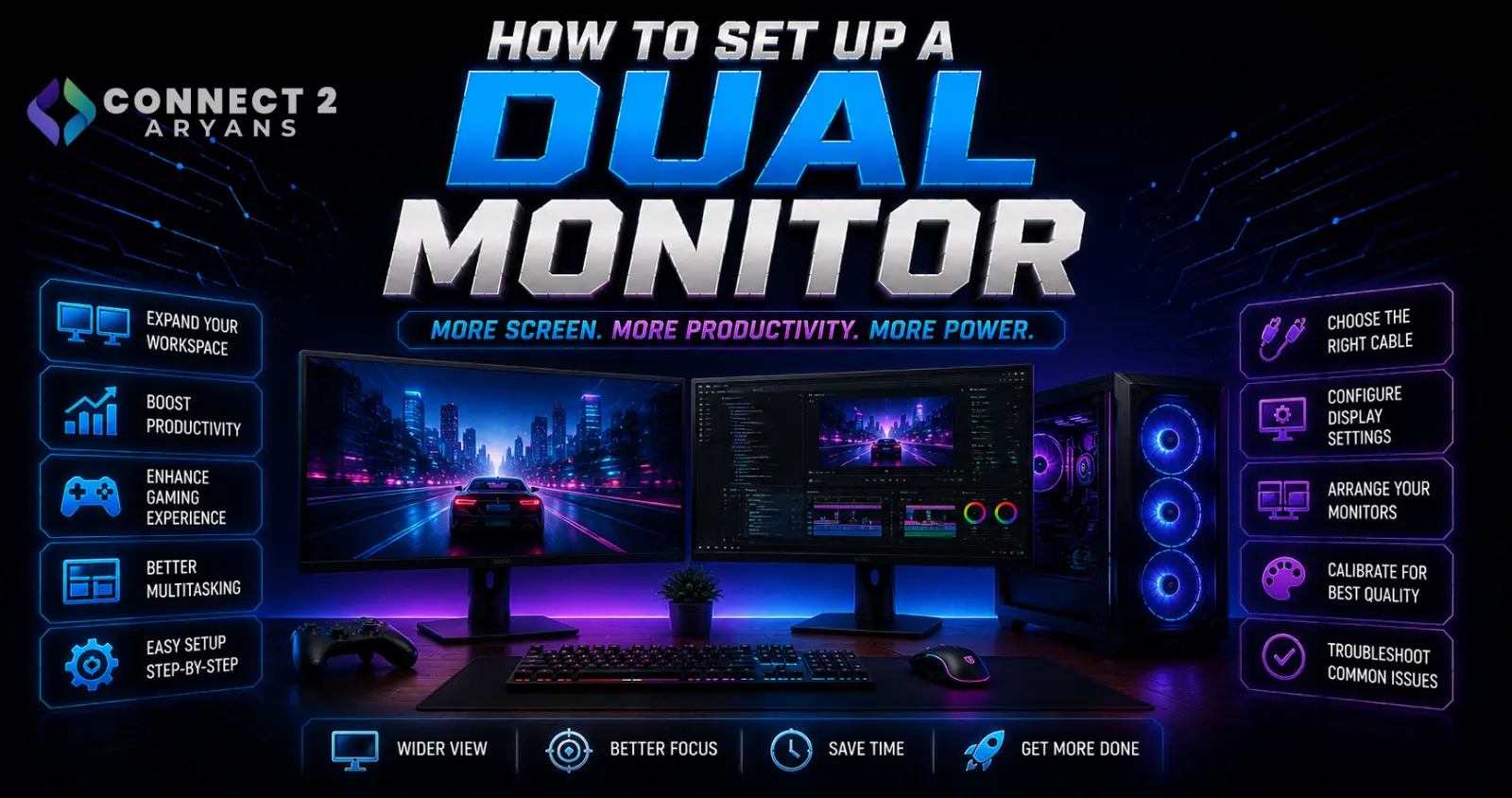
A dual monitor setup is one of the most genuinely useful upgrades for both productivity and gaming — more screen space for multitasking, reference material alongside your main task, or chat and stream overlays alongside gameplay. Getting it configured correctly takes a bit more than just plugging in a second screen. Here's the full process.
Step 1: Check Your GPU's Available Outputs
- Confirm your graphics card has enough video outputs (HDMI, DisplayPort) to connect two monitors simultaneously — most current GPUs support this, but always verify before buying a second monitor
- If your current GPU only has one usable output, or you're relying on integrated graphics with limited output support, this may be a sign it's time to consider a dedicated Graphics Card upgrade before adding a second display
- Browse our Graphics Card range from NVIDIA, AMD, and Intel if your current setup doesn't support the dual monitor configuration you want
Step 2: Choose Matching (or Complementary) Monitors
- Using two identical monitors gives the most consistent visual experience — same resolution, refresh rate, and color characteristics across both screens
- If using two different monitors, try to keep resolution and refresh rate reasonably close, since large mismatches can create an inconsistent feel when moving your cursor or windows between them
- Browse our Monitors range if you're buying a second display and want to match your existing one, checking 180 Hz or your current monitor's specific refresh rate for consistency
Step 3: Get the Right Cables
- Use the same cable type (HDMI or DisplayPort) for both monitors where possible, or whatever combination your GPU's available outputs support
- For higher-refresh-rate monitors, confirm your cable version actually supports that refresh rate at your target resolution — an older or lower-spec cable can silently cap your second monitor's performance
- Browse our Cables & Hub range for HDMI or DisplayPort cables rated for your specific resolution and refresh rate needs
Step 4: Physical Arrangement
- Position your monitors to match how you'll actually use them — side by side for most productivity setups, or one central with a secondary angled slightly for reference material
- A Monitor Arms setup makes positioning significantly easier than fixed stands, letting you adjust height, angle, and spacing precisely to match your desk and how you'll configure the displays in software
- Consider desk space and viewing distance for both monitors — the secondary monitor shouldn't require excessive neck turning if you'll reference it frequently
Step 5: Configure Display Settings (Windows)
- Right-click the desktop and open Display Settings to access multi-monitor configuration
- Identify your monitors using the "Identify" button, which shows a number on each physical screen matching its position in settings
- Arrange them to match your physical desk layout — drag the monitor icons in settings to reflect their actual left/right or up/down physical positions, since this determines how your cursor moves between them
- Choose "Extend these displays" (rather than "Duplicate") for a true dual-monitor productivity setup, giving you separate usable space across both screens
- Set the correct resolution and refresh rate for each monitor individually, since Windows sometimes defaults to a lower setting than the monitor actually supports
Step 6: Handle Different Refresh Rates Correctly
- If your two monitors have different refresh rates (e.g., a 180 Hz gaming monitor alongside a 60 Hz secondary), Windows generally handles this fine, but be aware that dragging windows between monitors with different refresh rates can occasionally cause mild visual stutter
- Some games specifically only run at the refresh rate of your primary monitor, regardless of your secondary — check game-specific settings if this becomes an issue
Step 7: Set Your Primary Monitor
- Choose which monitor acts as your primary display (where your taskbar and new windows open by default) in Display Settings
- For gaming setups, this is typically your higher-refresh-rate, primary gaming monitor, with the secondary used for chat, streaming software, or background content
Step 8: Adjust Scaling if Needed
- If your two monitors have different resolutions or physical sizes, text and icons may appear inconsistently sized between them
- Windows allows per-monitor scaling adjustment in Display Settings — tune each monitor's scaling percentage individually until text and UI elements feel comfortable on both
Common Dual Monitor Issues and Fixes
- Cursor won't move smoothly between monitors: usually caused by incorrect arrangement in Display Settings not matching physical layout — re-drag the monitor positions to match reality
- Secondary monitor running at lower resolution/refresh rate than expected: check the cable type and version being used, since an inadequate cable can silently cap performance
- Games only using one monitor properly: check the specific game's display settings, since some games handle multi-monitor setups differently than the OS-level configuration
- Inconsistent colors between monitors: especially noticeable with mismatched monitor models — individual monitor color calibration can help minimize this
Final Thoughts
A dual monitor setup pays off significantly for both productivity and gaming once configured correctly — the setup itself is mostly about matching your GPU outputs, cables, and Windows display arrangement to your actual physical layout. Take the time to get resolution, refresh rate, and arrangement right for each monitor individually, rather than accepting Windows' default detection.
Browse our full range of Monitors, Graphics Card, Monitor Arms, and Cables & Hub on Connect2Aryans to build out your dual monitor setup, with warranty support included.

