
How to Install a Graphics Card Step by Step
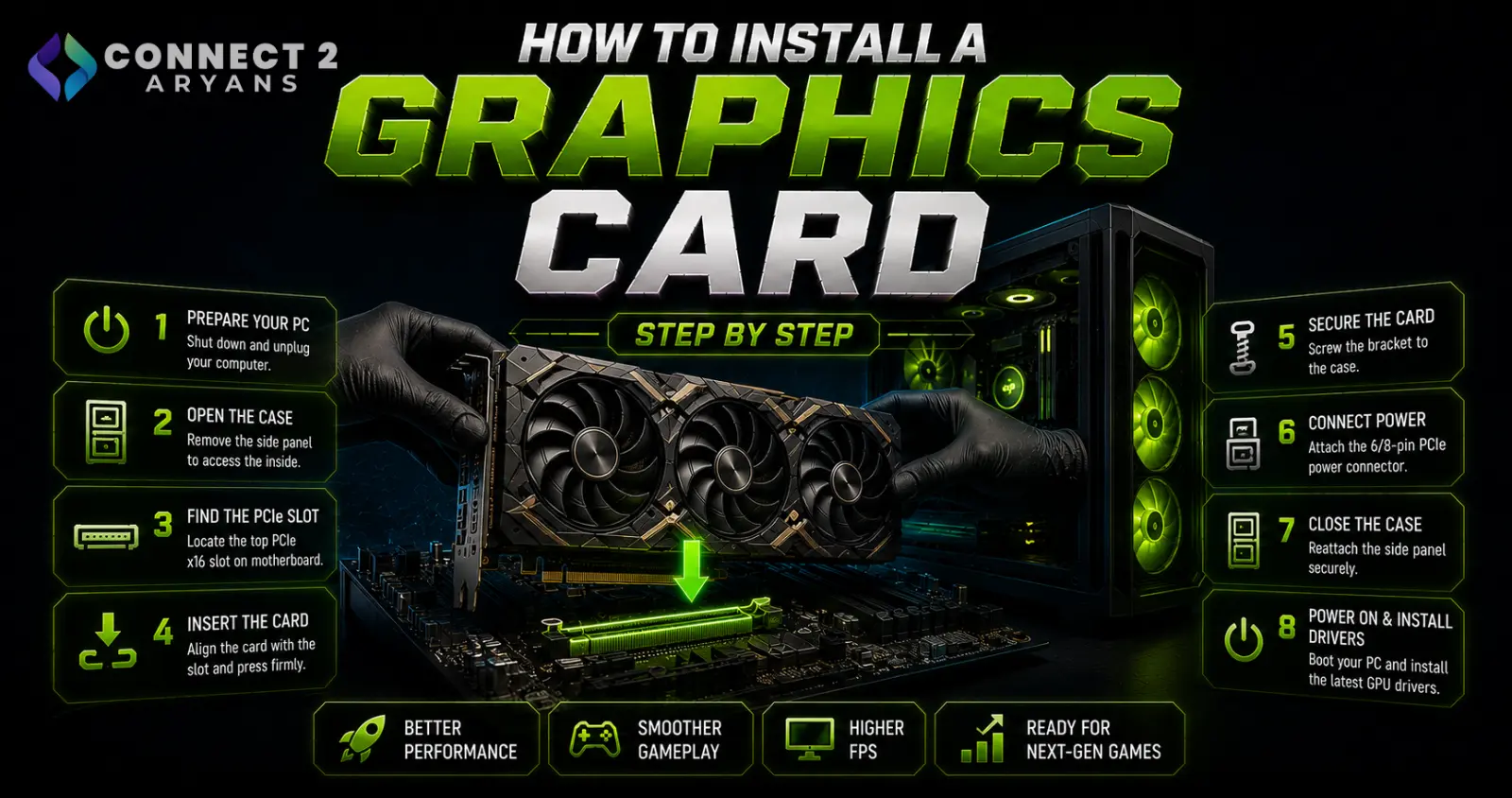
Installing a graphics card is genuinely one of the simplest upgrades you can do yourself — no soldering, no delicate procedures, just careful handling and a few connections. The most important work actually happens before you even open the case: confirming everything is compatible. Here's the complete process.
Before You Start: Confirm Compatibility
- PSU wattage: confirm your power supply has enough headroom for your new GPU — check your PSU's rated wattage against the card's recommended requirements; mid-range GPUs generally need [[F: PSU Wattage | 600 - 650 Watts]] to [[F: PSU Wattage | 700 - 750 Watts]], while higher-end cards need [[F: PSU Wattage | 800 - 850 Watts]] or more
- PSU connectors: confirm your PSU has the correct PCIe power connectors for your specific GPU (some newer high-end cards use a 12VHPWR/12V-2x6 connector rather than traditional 6/8-pin) — if your current PSU lacks the right connectors, browse our [[C: Power Supply]] range for a compatible replacement
- Case clearance: check your case's maximum supported GPU length against your new card's actual dimensions, especially for larger triple-fan cards
- PCIe slot: confirm your motherboard has a free PCIe x16 slot, typically the top slot closest to the CPU for best performance
Tools and Preparation
- A Phillips screwdriver (usually all that's needed)
- An anti-static wrist strap (optional but recommended), or simply touch a grounded metal surface periodically during installation
- Enough clear workspace to lay the case on its side comfortably
Step 1: Power Off and Prepare Your PC
- Fully shut down your PC and unplug it from the wall — never install components with the system powered, even if just switched off
- Press the power button briefly after unplugging to discharge any residual power in the system
- Open your case's side panel (typically a few thumbscrews or a latch mechanism)
Step 2: Remove Your Old Graphics Card (If Applicable)
- Disconnect any PCIe power cables connected to the old card
- Release the PCIe slot's retention latch (usually a small clip at the end of the slot)
- Unscrew the card from the case's rear bracket
- Gently pull the card straight out of the PCIe slot, avoiding side-to-side rocking that could stress the slot
Step 3: Prepare the New Card's Slot
- If your motherboard supports it, some boards recommend disabling integrated graphics in BIOS before installing a dedicated GPU, though most current systems handle this automatically — check your specific motherboard's documentation if you experience issues later
- Ensure the PCIe slot area is free of dust before installing the new card, using compressed air if needed
Step 4: Install the New Graphics Card
- Align the card's connector with the PCIe x16 slot and the bracket with the case's rear expansion slot openings
- Press down firmly and evenly until the card clicks into the slot's retention latch — you should feel and hear a definitive click
- Screw the card's bracket securely to the case to prevent sagging over time, especially for larger, heavier cards
Step 5: Connect Power Cables
- Connect all required PCIe power connectors from your PSU directly to the GPU — partially connected cables are one of the most common causes of a no-display boot after installation
- If your card uses a 12VHPWR/12V-2x6 connector, ensure it's fully seated, since this connector type requires a firm, complete connection
- Double-check cable routing doesn't put stress on the connectors or interfere with case airflow
Step 6: Close the Case and Power On
- Close the side panel and reconnect all cables (power, monitor) to the system
- Connect your monitor to the new GPU's video output, not the motherboard's integrated graphics output if your CPU has one
- Power on the system and confirm it boots and displays properly
Step 7: Install Drivers
- Install the latest drivers directly from [[B: NVIDIA]], [[B: AMD]], or [[B: Intel]] depending on your GPU brand, rather than relying solely on Windows' automatic driver installation
- A clean driver installation (using the manufacturer's clean-install option if available) helps avoid conflicts with any previous GPU drivers still present on the system
Troubleshooting: No Display After Installation
- Check monitor cable connection to the GPU specifically, not the motherboard
- Reseat the GPU fully in the PCIe slot, confirming the retention latch has properly clicked
- Check all power connectors are fully and firmly seated
- Try a different monitor cable or port on the GPU to rule out a cable issue
- If none of these resolve it, the GPU itself, PSU, or motherboard slot may need further troubleshooting
Popular Graphics Card Brands
- [[B: NVIDIA]]
- [[B: AMD]]
- [[B: Intel]]
Common Mistakes to Avoid
- Skipping the PSU wattage and connector check before buying, discovering incompatibility after the card arrives
- Not screwing the card's bracket to the case, risking sag and stress on the PCIe slot over time
- Partially connecting PCIe power cables, causing a no-display boot
- Connecting the monitor to the motherboard's integrated graphics output instead of the new GPU
Final Thoughts
Installing a graphics card is straightforward once you've confirmed PSU wattage, connectors, and case clearance ahead of time — the physical installation itself takes just a few minutes. Most installation problems trace back to a skipped compatibility check or a partially connected cable, both entirely avoidable with a bit of care.
Browse our full range of [[C: Graphics Card]] options from [[B: NVIDIA]], [[B: AMD]], and [[B: Intel]] on Connect2Aryans, along with compatible [[C: Power Supply]] units if your current PSU needs an upgrade too, with warranty support included.

