
How to Fix USB Ports That Stopped Working
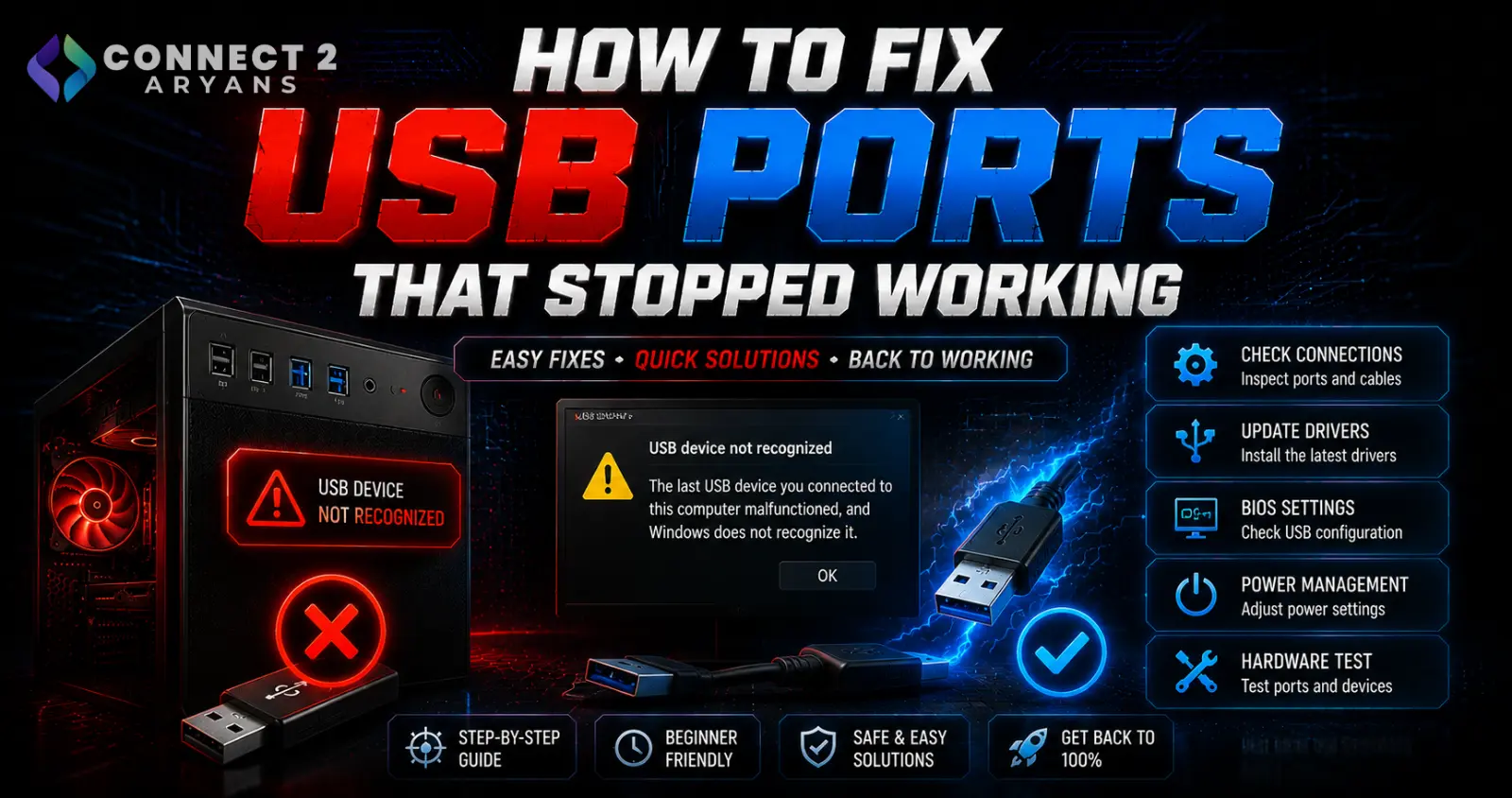
USB ports that suddenly stop working are more often a software or power management issue than an actual hardware failure — which is good news, since most causes are fixable without opening the case. Here's how to work through it systematically.
Step 1: Confirm the Scope of the Problem
- Only one specific port affected? Points toward that individual port's connection or a localized hardware issue
- All USB ports affected simultaneously? Points toward a driver, power management, or motherboard-level issue rather than one bad port
- Only certain devices fail, others work fine? Points toward a device-specific or power-draw issue rather than the ports themselves
Step 2: Try a Different Device in the Same Port
- Test with a different USB device (mouse, flash drive, etc.) in the affected port to determine if it's the port or the original device that's actually at fault
Step 3: Check Device Manager for Driver Issues
- Open Device Manager and look under "Universal Serial Bus controllers" for any entries with warning icons
- Right-click and uninstall any problematic USB controller entries, then restart — Windows will reinstall the drivers automatically
- This resolves a large share of "USB stopped working" cases caused by driver corruption rather than actual hardware failure
Step 4: Disable USB Selective Suspend
- Windows includes a power-saving feature that can selectively power down USB ports to save energy, which occasionally causes ports to become unresponsive or slow to wake
- In Power Options (Control Panel), find USB settings and disable "USB selective suspend setting" to rule this out as a cause
Step 5: Check for Power Management Settings on the USB Hub Itself
- In Device Manager, right-click each USB Root Hub entry, go to Properties → Power Management, and uncheck "Allow the computer to turn off this device to save power"
- This is a common, often overlooked cause of intermittent USB port failures, particularly on laptops
Step 6: Check for a BIOS-Level USB Setting
- Some motherboards allow disabling specific USB ports or USB legacy support in BIOS — confirm nothing has been inadvertently changed here, especially after a BIOS update or reset
- If you recently updated or reset your BIOS, USB settings sometimes revert to defaults that differ from your previous configuration
Step 7: Check for Physical Damage or Debris
- Inspect the port itself for bent pins, debris, or visible damage — a flashlight can help spot small obstructions
- Compressed air can safely clear dust or debris from a port without risking damage
Step 8: Check Power Draw (For Multiple High-Power Devices)
- If you're connecting several power-hungry USB devices simultaneously (external drives, hubs, high-draw peripherals) through a single hub or a limited number of ports, you may be exceeding what that connection can reliably supply
- Try using a powered USB hub, or spreading devices across different physical ports/headers on the motherboard, rather than one shared hub
Step 9: Test in BIOS
- If a port doesn't work even in BIOS (before Windows loads), this points more toward a hardware or motherboard-level issue rather than a software/driver problem, since BIOS doesn't rely on Windows drivers
- If a port works in BIOS but not in Windows, that strongly suggests a driver or software cause instead
Quick Diagnostic Summary
| Symptom | Likely Cause |
|---|---|
| One port affected, others fine | Localized port issue — try Device Manager fixes first |
| All ports affected simultaneously | Driver or power management setting |
| Works in BIOS, not in Windows | Software/driver cause |
| Doesn't work even in BIOS | Hardware/motherboard-level issue |
| Fails only with multiple devices connected | Power draw — try a powered hub |
Common Mistakes to Avoid
- Assuming a dead USB port always means hardware failure without checking Device Manager and power settings first
- Overlooking USB selective suspend and power management settings as common, fixable causes
- Not testing whether the issue persists in BIOS to isolate software vs hardware causes
- Overloading a single hub or port with too many high-power devices simultaneously
Final Thoughts
Most "dead" USB ports are fixable through driver reinstallation or adjusting power management settings, rather than requiring hardware replacement. Work through the software-level fixes first — they resolve the large majority of cases — before assuming a physical fault with the port or motherboard itself.
Browse our full range of Motherboard and Cables & Hub options on Connect2Aryans if you determine a hardware-level replacement is genuinely needed, with warranty support included.

