
Choosing the Right Pen Tablet
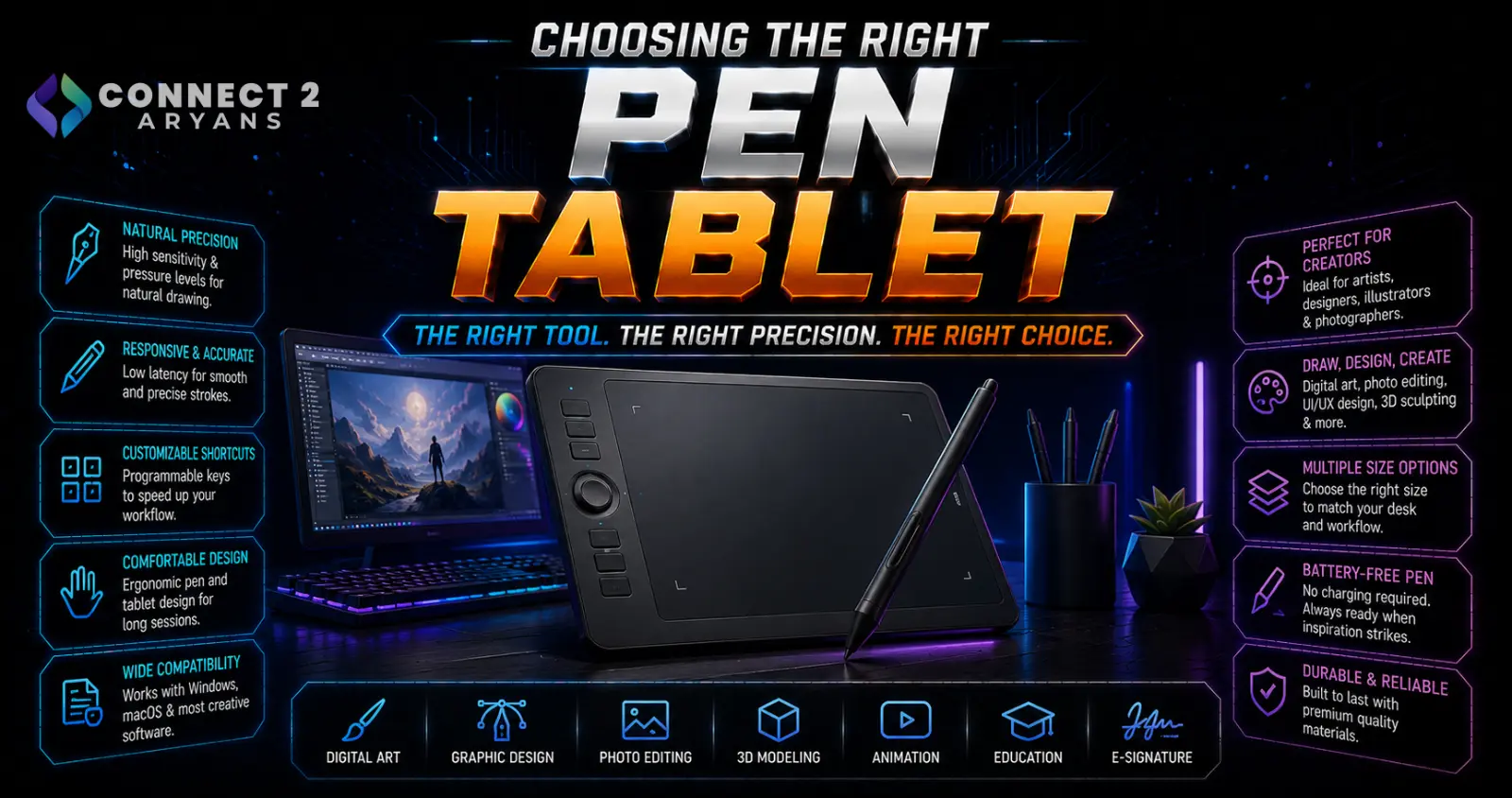
A pen tablet is judged on how natural it feels to actually draw on — pressure sensitivity, active area size, and (for pen displays) screen accuracy matter far more than the brand name alone. Here's how to choose the right Pen Tablets for digital art, design, or note-taking work.
Step 1: Non-Display Tablet or Pen Display?
- Non-display graphics tablet — a flat surface you draw on while looking at a separate monitor, generally more affordable and portable, requiring some adjustment to build hand-eye coordination between the tablet surface and screen
- Pen display tablet — a screen you draw directly onto, offering a more natural, direct drawing experience since you see your strokes exactly where your hand is, at a significantly higher price point
Rule of thumb: non-display tablets are the practical entry point for most beginners and offer excellent value; pen displays are worth the investment once you're committed to digital art and want the most natural drawing feel.
Step 2: Pressure Sensitivity
- Pressure sensitivity (measured in levels, like 8192) determines how finely the tablet detects varying pressure from light to firm strokes, affecting line weight and shading control
- Most current tablets, even budget ones, now offer high pressure sensitivity levels sufficient for the vast majority of digital art work
- Beyond a certain point, higher advertised pressure levels offer diminishing real-world benefit — check reviews for actual pressure curve quality and consistency rather than chasing the highest number alone
Step 3: Active Area Size
- Smaller active areas — more compact, portable, and often cheaper, though can feel cramped for detailed work or large canvas movements
- Larger active areas — more room for natural arm movement and detailed work, but take up more desk space and can require more arm movement across the surface
Recommendation: match active area size to your desk space and drawing style — many professional digital artists use medium-sized tablets, finding very large active areas require more arm movement than beneficial for most work.
Step 4: Tilt Recognition
- Tilt recognition detects the angle at which you hold the pen, useful for simulating natural brush and pencil effects like shading with the side of a pencil tip
- Valuable for artists who rely on traditional media techniques translated digitally; less critical for technical illustration, photo retouching, or general productivity use
Step 5: Connectivity
- Wired (USB) — the most reliable connection, no battery to manage, standard for most non-display tablets and many pen displays
- Bluetooth — available on some tablets, offering a cleaner desk setup without a permanent cable, though check for any reported latency in reviews if precision matters for your work
Step 6: For Pen Displays — Screen Quality Matters
If considering a pen display specifically:
- Color accuracy — important for professional design and illustration work where color fidelity to the final output matters
- Resolution — higher resolution offers sharper detail, particularly noticeable on larger pen display screens
- Anti-glare/matte coating — reduces reflections and can offer a more paper-like drawing texture, worth checking for if you're sensitive to screen glare
Step 7: Driver and Software Compatibility
- Confirm stable driver support for your specific operating system and version, since this is a common source of connectivity or pressure-sensitivity issues after setup
- Check compatibility with your primary creative software (Photoshop, Clip Studio Paint, Procreate-equivalents, etc.) since pen input handling can vary between programs
Step 8: Match to Your Use Case
- Digital art/illustration: Prioritize pressure sensitivity, tilt recognition, and active area size matched to your drawing style
- Photo retouching/editing: Prioritize precision and a comfortable active area over tilt recognition
- Note-taking/productivity: A smaller, more affordable non-display tablet is generally sufficient
- Professional design work: A pen display with strong color accuracy offers the most direct, precise workflow
Popular Pen Tablet Brands
Common Mistakes to Avoid
- Buying a pen display for a workflow that would be equally well served by a more affordable non-display tablet
- Choosing an active area size that doesn't match your desk space or natural drawing motion
- Overlooking driver compatibility with your specific creative software before purchase
- Chasing the highest advertised pressure sensitivity number without checking real-world pressure curve reviews
Final Thoughts
The right pen tablet comes down to choosing between non-display and pen display based on budget and how directly you want to draw, then matching active area size and features (tilt recognition, screen quality) to your actual creative workflow. Most beginners are well served starting with a non-display tablet before investing in a pricier pen display setup.
Browse our full range of Pen Tablets from XP-Pen, and UGREEN on Connect2Aryans, with warranty support included.

