
Choosing the Right SSD for Your PC
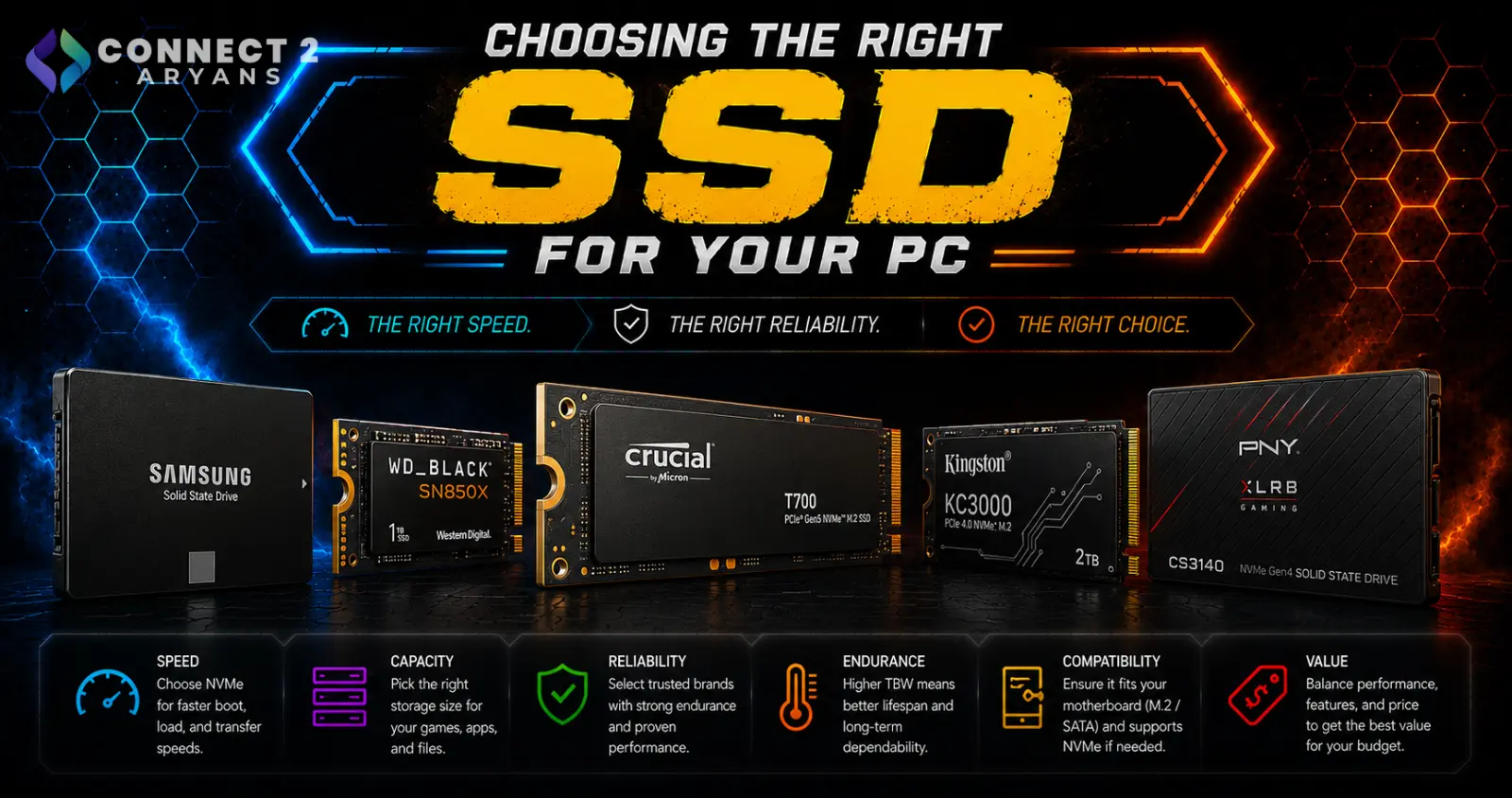
If you're still running a hard drive as your main drive, an SSD upgrade is one of the most noticeable performance improvements you can make to a PC — often more noticeable than a CPU or GPU upgrade for everyday responsiveness. But "SSD" isn't one single product; it comes in a few different shapes and interfaces that aren't interchangeable. Here's how to pick the right one.
Step 1: Know the Three SSD Formats
- 2.5" SATA SSD — looks like a small hard drive, connects via SATA cable, works in almost any desktop or laptop with a SATA port and drive bay
- M.2 SATA SSD — a small stick-shaped drive that plugs directly into a motherboard's M.2 slot, but still runs at SATA speeds
- M.2 NVMe SSD — the fastest option, also stick-shaped and plugs into an M.2 slot, but uses the PCIe interface for significantly higher speeds
Important: M.2 slots aren't all the same — some only support SATA-speed M.2 drives, others support NVMe, and some support both. Always check your motherboard's specific M.2 slot specifications before buying.
Step 2: Which Format Should You Choose?
- Upgrading an older desktop or laptop with only SATA ports? A 2.5" SATA SSD is the simplest, most compatible option
- Have a free M.2 slot but an older motherboard? Check if it supports NVMe or only SATA-speed M.2 before buying
- Building a current-gen PC? An M.2 NVMe SSD is the right default choice — faster, and increasingly the standard primary drive format
Step 3: Choose the Right Capacity
- 256GB–500GB — workable for a secondary or lighter-use drive, tight as a primary drive today
- 1TB — the realistic sweet spot for a primary SSD, comfortably fitting an OS, several games, and everyday software
- 2TB — worth it for larger game libraries or media/project files
- 4TB+ — mainly relevant for content creators or users consolidating storage onto a single fast drive
Step 4: Understand Endurance (TBW Rating)
SSDs have a limited number of total writes over their lifespan, measured in TBW (Terabytes Written):
- Higher TBW ratings mean a longer expected lifespan under heavy write workloads
- For typical everyday use (OS, games, general files), most current SSDs comfortably outlast the rest of your PC's usable life
- TBW matters more if you're using the drive for heavy, constant read/write work — like video editing scratch disks or server-style workloads
Step 5: SATA vs NVMe — Is the Speed Difference Worth It?
- SATA SSDs are already dramatically faster than HDDs for boot times and everyday responsiveness — a genuine upgrade on their own
- NVMe adds further speed, most noticeable in large file transfers, game load times in demanding titles, and content creation workflows
- If you're upgrading from an HDD, either SSD type is a big jump — NVMe is the better choice if your motherboard supports it and budget allows, but SATA SSD is still a legitimate, meaningful upgrade
Popular SSD Brands
Common Mistakes to Avoid
- Buying an M.2 NVMe SSD for a motherboard slot that only supports SATA-speed M.2 drives
- Assuming all SSDs are equally fast without checking whether it's SATA or NVMe
- Underbuying capacity at 256GB in 2026, given modern game and software sizes
- Ignoring TBW rating for a drive that will see heavy, constant write activity
Final Thoughts
Moving from an HDD to any SSD is a meaningful upgrade — the bigger decision is matching the right format (2.5" SATA, M.2 SATA, or M.2 NVMe) to what your motherboard actually supports, then sizing capacity to your real usage. Check your available slots first, and the right SSD choice becomes straightforward.
Browse our full range of SATA and NVMe SSDs from ADATA, Crucial, Lexar and Transcend on Connect2Aryans, with warranty support included.

