
Choosing the right interactive display
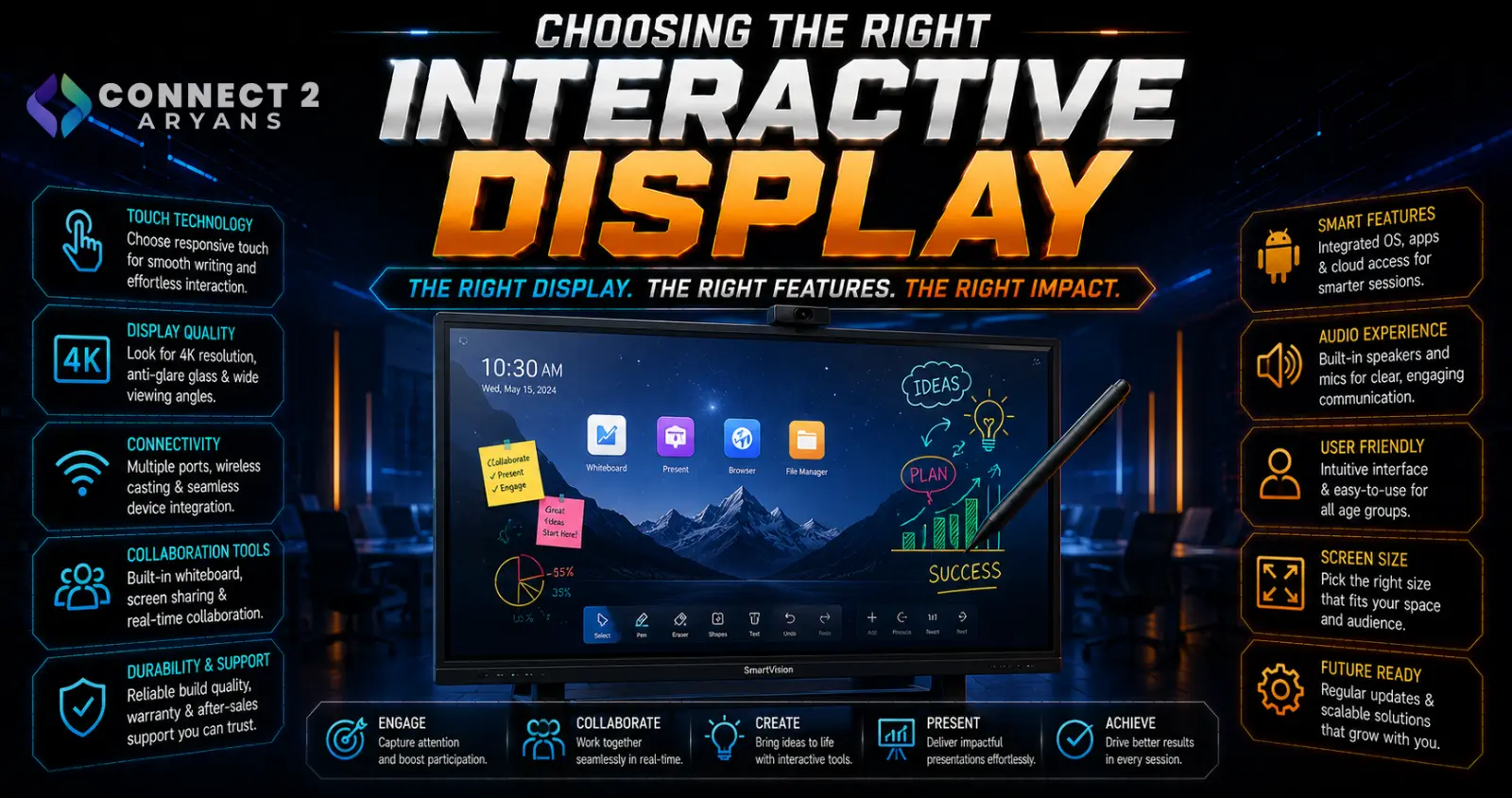
Interactive displays have largely replaced traditional whiteboards and projector setups in classrooms and meeting rooms, but they vary significantly in touch accuracy, built-in software, and how well they integrate with existing equipment. Here's how to choose the right Interactive Displays for your space.
Step 1: Screen Size for Your Room
- 55"–65" — suitable for smaller classrooms or meeting rooms with closer viewing distances
- 65"–75" — a common sweet spot for standard classrooms and mid-size conference rooms
- 75"+ — better suited to larger rooms, lecture halls, or spaces where viewers sit further from the screen
Measure your room's actual viewing distance and audience size before choosing — an undersized display strains visibility from the back of a larger room, while an oversized one can feel overwhelming in a small space.
Step 2: Touch Technology
- Infrared (IR) touch — widely used, reliable multi-touch detection, generally works well across a range of price points
- Capacitive touch — offers a smoother, more responsive touch feel similar to a smartphone or tablet, often found on higher-end displays
- Check the number of simultaneous touch points supported — more touch points matter for collaborative use where multiple people interact with the screen at once
Step 3: Built-In OS vs External PC
- Built-in Android-based systems — many interactive displays include a built-in operating system with pre-loaded whiteboard, annotation, and presentation software, working standalone without a separate PC
- External PC connection — displays can also function as a large touchscreen monitor connected to a separate PC, useful if you need software beyond what's built in, or want to use existing computers
- Many displays support both — built-in software for quick, simple use, and PC connectivity (via HDMI or USB-C) for more demanding software needs
Recommendation: if your use case is mostly presentations, annotation, and basic collaboration, built-in software is often sufficient. If you need specific software (CAD, specialized apps), plan on connecting an external PC.
Step 4: Resolution
- 4K resolution is now standard on most quality interactive displays, offering sharp text and detail even at close viewing distances
- Avoid lower-resolution displays for any application involving detailed content, fine text, or close-up viewing, since this becomes noticeably softer than 4K
Step 5: Connectivity and Integration
- Check for sufficient HDMI and USB-C inputs to connect laptops, existing PCs, and other devices without needing constant cable swapping
- Wireless screen casting support (for phones, tablets, and laptops) adds convenience for quick presentations without physical cables
- If integrating with existing video conferencing equipment, confirm compatibility with your specific conferencing software and camera/microphone setup
Step 6: Mounting and Portability
- Wall-mounted — a permanent, stable installation suited to dedicated classrooms or meeting rooms
- Mobile stand/cart — allows the display to move between rooms, useful for shared spaces or smaller organizations that can't dedicate a display to every room
Check the display's weight and your mounting solution's compatibility (VESA pattern, wall material, cart weight rating) before finalizing your setup.
Step 7: Match to Your Primary Use Case
- Classrooms: Prioritize built-in educational software, reliable touch accuracy, and durability for daily use by many different users
- Business meeting rooms: Prioritize video conferencing integration, wireless casting, and connectivity with existing office equipment
- Retail/public displays: Prioritize durability, screen brightness for varied lighting, and simple, intuitive touch interaction for public use
Popular Interactive Display Brands
Common Mistakes to Avoid
- Choosing a display too small for the actual room size and viewing distance
- Assuming built-in software covers all your needs without checking if you'll actually need external PC connectivity
- Overlooking touch point count for genuinely collaborative, multi-user scenarios
- Ignoring mounting weight and compatibility requirements before purchase
Final Thoughts
The right interactive display comes down to matching screen size to your room, choosing touch technology and software that fit your actual use case (education, business, or public use), and confirming connectivity with your existing equipment. Built-in software works well for straightforward presentation and annotation needs — external PC connectivity matters most when your work requires specific software beyond what's pre-loaded.
Browse our full range of Interactive Displays from ViewSonic and Don view on Connect2Aryans, with warranty support included.

