
Choosing the Right HDD
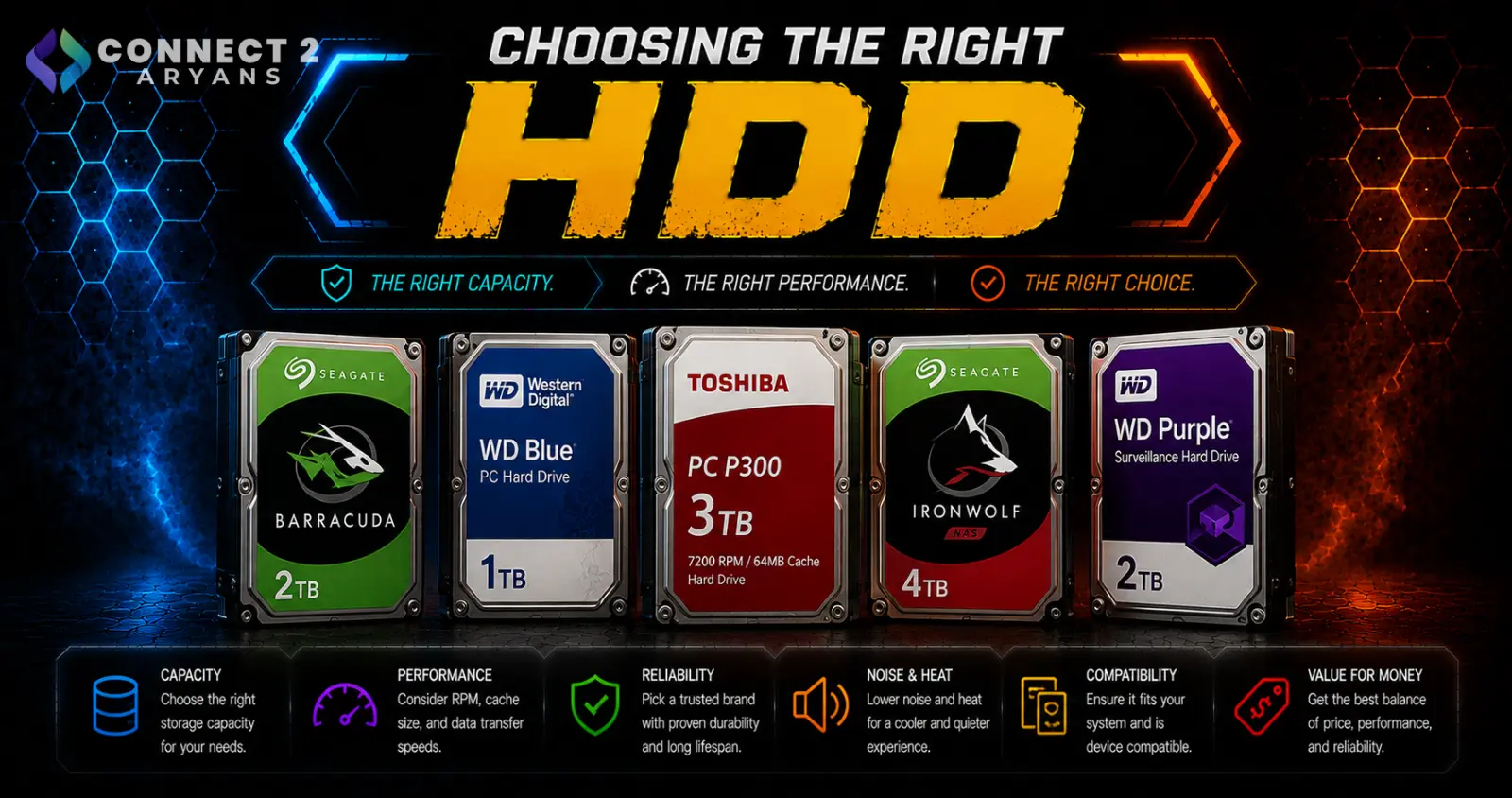
HDDs aren't your primary drive anymore in most modern builds, but they're far from obsolete. For bulk storage, backups, and media libraries, they remain the most cost-effective option by a wide margin — nothing else comes close on cost per GB. Here's how to choose the right one.
Step 1: Know What an HDD Is Actually Good For Today
- Bulk storage — large media libraries, game backups, document archives
- Backups — full system backups, photo/video archives you don't need instant access to
- NAS/media server storage — always-on storage for home networks and media streaming setups
- Not recommended as a primary OS or active-use drive — that role belongs to an SSD
Step 2: Choose the Right Capacity
- 1TB–2TB — fine for lighter backup needs or a secondary drive alongside a smaller SSD setup
- 4TB — a comfortable sweet spot for media libraries, game backups, and general bulk storage
- 8TB–10TB — worth it for extensive media collections, NAS setups, or heavier backup needs
- 12TB+ — mainly relevant for serious media server builds, large NAS arrays, or archival-heavy use cases
Step 3: Understand RPM (Rotational Speed)
- 5400 RPM — quieter, cooler-running, lower power draw; fine for backup and archival use where speed isn't critical
- 7200 RPM — noticeably faster read/write performance, better suited for NAS use or drives you access more frequently
Rule of thumb: for pure "set it and forget it" backup storage, 5400 RPM is perfectly adequate. For NAS or more frequently accessed bulk storage, 7200 RPM is worth the small price difference.
Step 4: Check Cache Size
- Larger cache sizes (64MB, 128MB, 256MB) help smooth out performance during bursts of read/write activity
- This matters more for NAS and frequently accessed drives than for pure cold backup storage, where it has less real-world impact
Step 5: NAS-Rated vs Standard Desktop HDDs
If you're building a NAS or a system that runs 24/7:
- NAS-rated drives are built for continuous operation, vibration resistance (important in multi-drive enclosures), and better long-term reliability under constant use
- Standard desktop HDDs are fine for a single drive that isn't running around the clock, but aren't built with the same durability expectations for always-on, multi-drive setups
If you're specifically building a NAS, spend the extra on a NAS-rated drive — it's a meaningful reliability difference, not just marketing.
When Does an HDD Still Make Sense Over an SSD?
- When cost per GB matters more than speed — HDDs remain dramatically cheaper at higher capacities
- When the drive is for bulk storage or backups you don't access constantly
- When you need very high total capacity (8TB+) at a reasonable price, where equivalent SSD capacity is still significantly more expensive
If you're choosing a primary, actively-used drive, an SSD is still the better choice — HDDs make the most sense as the second drive in your setup, not the first.
Popular HDD Brands
- Western Digital
- Seagate
- Toshiba
Common Mistakes to Avoid
- Using a standard desktop HDD in a 24/7 NAS setup instead of a NAS-rated drive
- Choosing an HDD as your primary OS drive, resulting in slow boot times and general sluggishness
- Underbuying capacity for a backup drive and running out of space mid-backup
- Assuming all HDDs perform the same regardless of RPM and cache size
Final Thoughts
HDDs still earn their place in a PC setup — just not as the main drive anymore. Match RPM and cache to how often you'll actually access the drive, size capacity generously for backups and media, and choose NAS-rated drives if the system runs continuously.
Browse our full range of HDDs from Western Digital, Seagate, and Toshiba on Connect2Aryans, across capacities from 1TB to 12TB+, with warranty support included.

