
Choosing the Right Capture Card
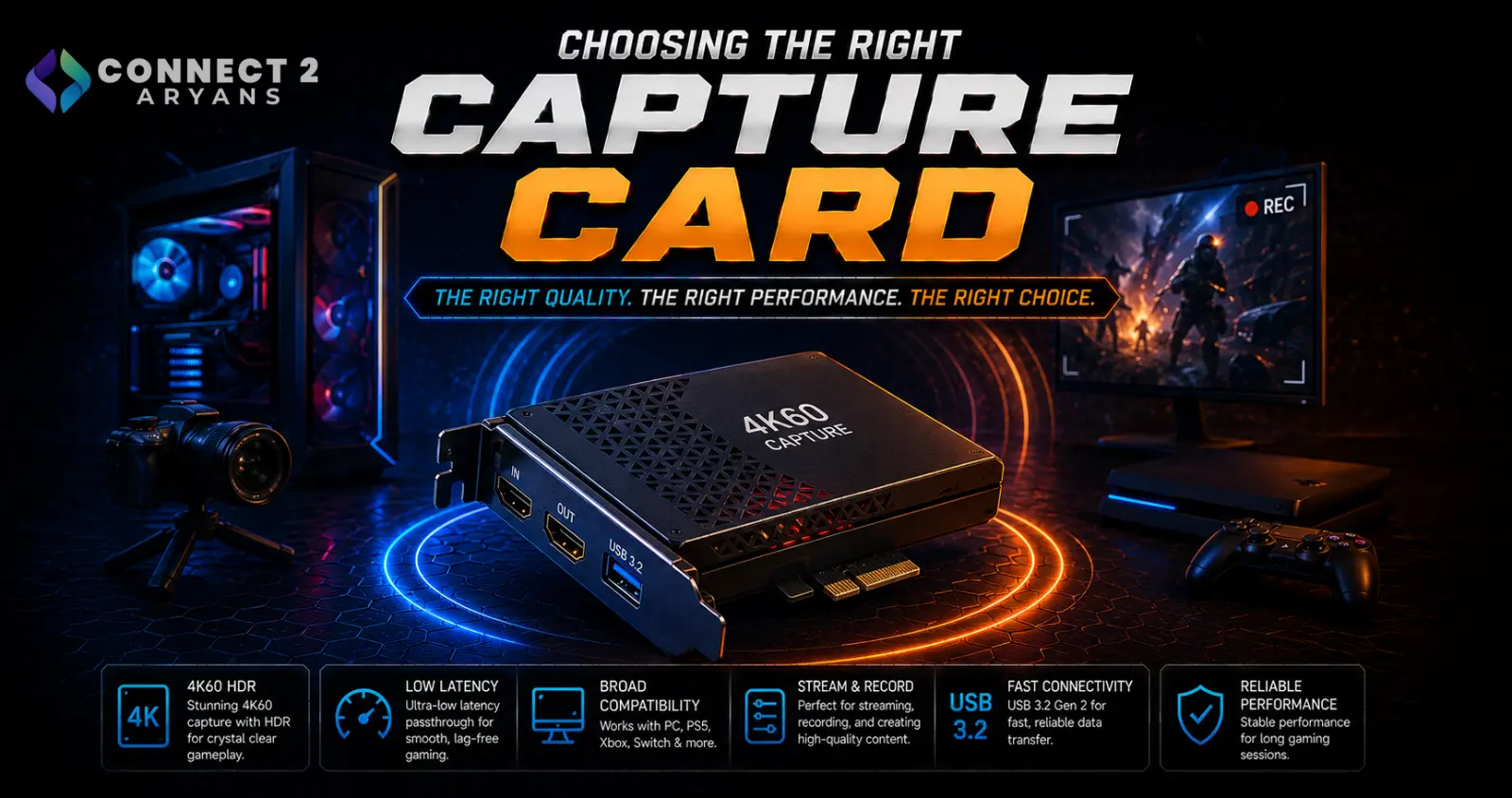
Capture cards used to mean one thing: streaming console gameplay. Now they're just as often used to bring a DSLR or mirrorless camera into a PC setup as a high-quality webcam, or to combine multiple video sources for more advanced production. Here's how to choose the right Capture Cards for what you're actually doing.
Step 1: Internal (PCIe) or External (USB)?
- Internal capture cards — install directly into a PCIe slot on your PC, generally offering lower latency and higher sustained performance, but require desktop compatibility and physical installation
- External capture cards — connect via USB, working with both desktops and laptops, easier to set up and move between systems, though sometimes with slightly more latency than a comparable internal card
Rule of thumb: if you're capturing on a desktop and don't need portability, an internal card often gives the best performance. If you need flexibility across multiple systems or use a laptop, an external card is the more practical choice.
Step 2: What Are You Actually Capturing?
- Console gameplay (Xbox, PlayStation, Switch) — most capture cards handle this well; check the card supports your console's actual output resolution and frame rate (many consoles output 4K, so 4K-capable capture matters if you don't want downscaled footage)
- DSLR/mirrorless camera as a webcam — look specifically for HDMI capture cards with low latency and confirmed compatibility with your camera's clean HDMI output mode
- Multi-source production (camera + gameplay + overlays) — needs software support (like OBS) with multiple capture inputs, and enough PC processing headroom to handle several sources simultaneously
Step 3: Check for 4K Passthrough Support
This matters especially for console capture:
- 4K passthrough allows the capture card to send a full 4K signal to your display/TV while simultaneously capturing (often at a lower resolution) for streaming or recording
- Without passthrough support, you may be forced to choose between viewing in 4K or capturing at all, depending on the card's limitations
- If you're capturing console gameplay and want to both play in 4K and stream/record simultaneously, confirm passthrough support explicitly before buying
Step 4: Understand Encoding — Hardware vs Software
- Hardware encoding capture cards — handle video compression on the card itself, reducing the load on your PC's CPU/GPU, useful if your PC is also running the game or other demanding tasks simultaneously
- Pass-through/software encoding — sends raw footage to your PC for software like OBS to encode, offering more control over quality settings but requiring more PC processing power
If you're capturing gameplay from a console (where your PC isn't also rendering the game), either approach works well. If you're capturing while your PC is simultaneously doing other demanding work, hardware encoding takes pressure off your system.
Step 5: Latency Considerations
- Capture cards inherently add a small amount of latency between the source and what you see on your capture monitor
- This matters most if you're using the capture card's passthrough as your primary display while gaming — check reviews for actual measured latency, not just marketing claims
- For camera-as-webcam use (calls, non-gaming streaming), latency is far less critical than for live console gameplay viewing
Popular Capture Card Brands
- Elgato
- AVerMedia
Common Mistakes to Avoid
- Buying a capture card without 4K passthrough support, then being forced to choose between viewing quality and capture quality
- Assuming any HDMI capture card works with a camera's clean HDMI output — compatibility varies by camera model
- Choosing an internal card for a laptop-based setup, overlooking the need for external instead
- Ignoring latency specs when using the capture card as your primary gaming display
Final Thoughts
The right capture card comes down to matching internal vs external to your setup, confirming 4K passthrough support if you need it, and choosing hardware or software encoding based on how much processing headroom your PC actually has free. Check compatibility with your specific source (console, camera, or multiple inputs) before buying, since not every card handles every source equally well.
Browse our full range of Capture Cards from Elgato and AVerMedia on Connect2Aryans, with warranty support included.

