
Choosing the Right Bluetooth Adapter
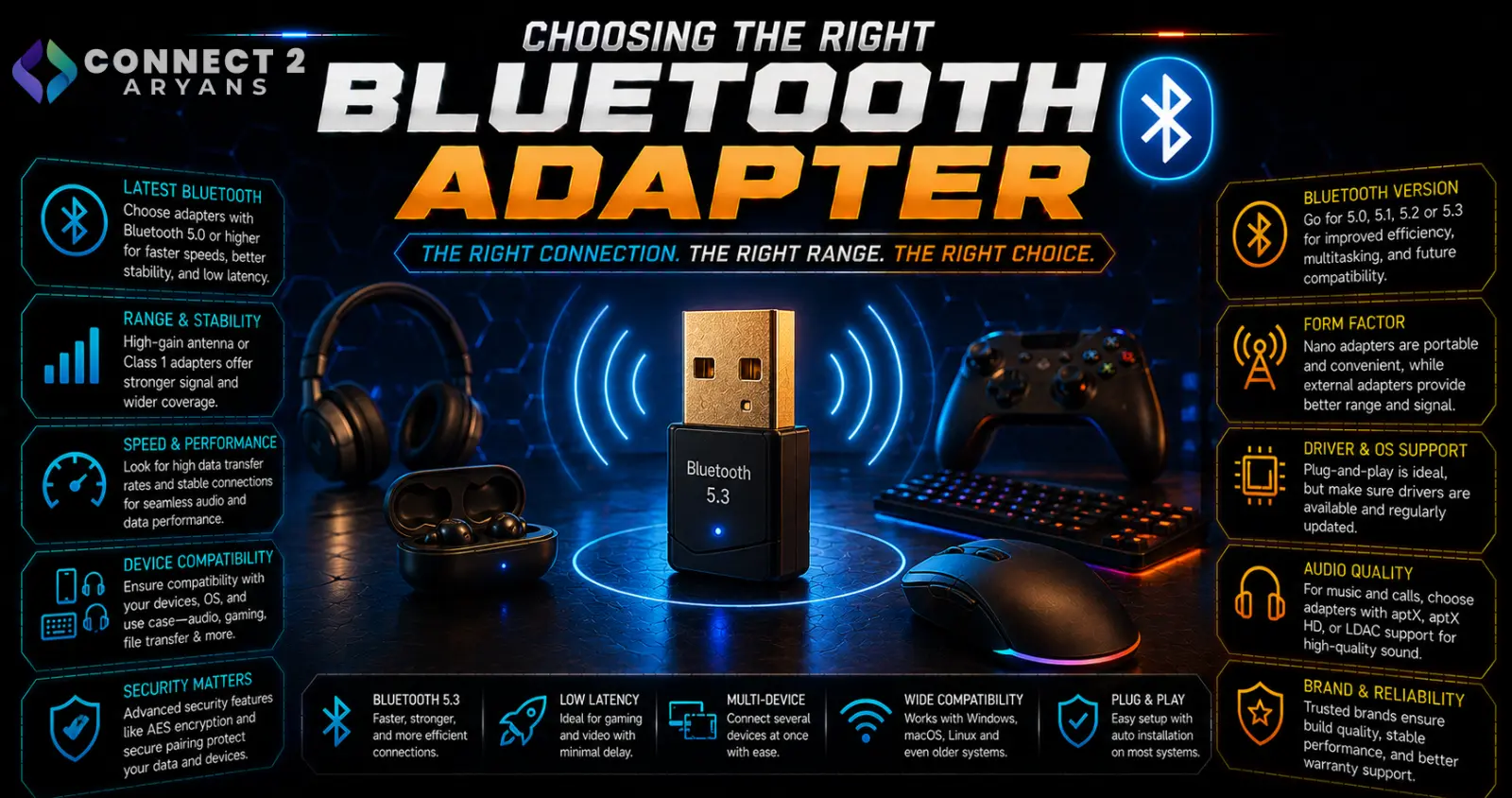
Many desktop PCs — especially budget or older builds — don't include built-in Bluetooth, which becomes a problem the moment you want to pair a wireless mouse, keyboard, or headphones without a separate USB dongle for each device. A single Bluetooth adapter solves that cleanly. Here's how to choose the right Bluetooth Adapters for your setup.
Step 1: Check Your Motherboard First
Before buying an adapter, confirm you actually need one:
- Some motherboards include built-in Bluetooth (often paired with Wi-Fi) — check your board's specifications before assuming you need an external adapter
- If your board already has Bluetooth, you only need an adapter if you want to add a newer Bluetooth version than your board supports
Step 2: Choose the Right Bluetooth Version
- Bluetooth 4.0/4.2 — older standard, still functional for basic peripherals, but with more limited range and lower data throughput
- Bluetooth 5.0/5.1 — a solid, widely compatible current standard with improved range and speed over 4.x
- Bluetooth 5.2/5.3 — adds improvements like better power efficiency and support for newer audio standards (LE Audio), worth prioritizing if you're using recent Bluetooth headphones or earbuds
- Bluetooth 5.4 — the newest widely available version, offering further refinements, though most everyday peripherals won't feel dramatically different from 5.0/5.1 in practice
Rule of thumb: Bluetooth 5.0 or higher covers the vast majority of everyday use well. Go for 5.2+ specifically if you're pairing newer audio devices that support LE Audio or want the latest power efficiency improvements.
Step 3: Backward Compatibility
Newer Bluetooth versions are generally backward compatible with older devices, so a Bluetooth 5.3 adapter will still work fine with an older Bluetooth 4.0 mouse — just without the newer version's specific improvements. You don't need to match versions exactly between adapter and device.
Step 4: Range
- Standard USB Bluetooth adapters typically offer a practical range of several meters, sufficient for typical desk-to-device distances
- If your setup involves connecting to devices across a larger room, check the adapter's specific advertised range, since this varies between models
- Physical obstructions (walls, other electronics) can reduce real-world range compared to open-space advertised figures
Step 5: Codec Support (For Audio Use)
If you're primarily using the adapter to connect Bluetooth headphones or speakers:
- Check whether the adapter supports higher-quality audio codecs like aptX, since basic adapters may default to the lower-quality SBC codec
- This matters most if you're specifically prioritizing audio quality over basic peripheral connectivity like a mouse or keyboard
Step 6: Driver Compatibility and OS Support
- Confirm the adapter has stable driver support for your specific operating system version — this is a more common source of Bluetooth adapter issues than the hardware itself
- Plug-and-play adapters that don't require separate driver installation are generally more hassle-free, especially on Windows
Popular Bluetooth Adapter Brands
- TP-Link
- ASUS
- UGREEN
- Avantree
Common Mistakes to Avoid
- Buying a Bluetooth adapter without first checking if your motherboard already has built-in Bluetooth
- Assuming you need to match Bluetooth versions exactly between the adapter and your devices — backward compatibility handles this
- Ignoring codec support if audio quality from Bluetooth headphones matters to you
- Overlooking driver compatibility with your specific OS version, leading to connectivity issues after installation
Final Thoughts
The right Bluetooth adapter comes down to confirming you actually need one, choosing at least Bluetooth 5.0 for solid everyday performance, and checking codec support if audio quality matters for your use case. It's a small, inexpensive fix for a common gap in desktop PCs, especially budget and older builds.
Browse our full range of Bluetooth Adapters from TP-Link, ASUS, UGREEN, and Avantree on Connect2Aryans, with warranty support included.

